Web design Artwork by OUTLAW BY DESIGN




DATE WRITTEN: May 2010
©Sassy n Simple
THINGS NEEDED
PAINT SHOP OR COREL PROGRAM
JASC ANIMATION SHOP
CREDITS
TUBES: Psyco Jimi Happy 4th and strat guitar tubes they are FTU but you need a License from Mistaken Art.
I have a license MtAF1243
KIT: Bel Vidotti FTU tagger Kit Rock'n'Roll
FONT: fFTU from DaFont Kingthings Xander
READ BELOW BEFORE STARTING THEY WILL NOT BE REPEATED
Settings may differ slightly depending on your version.
Close original image after you copy unless I state other wise.
Sharpen all re-sized items 1 time
RE-SIZE only one layer unless other wise stated.
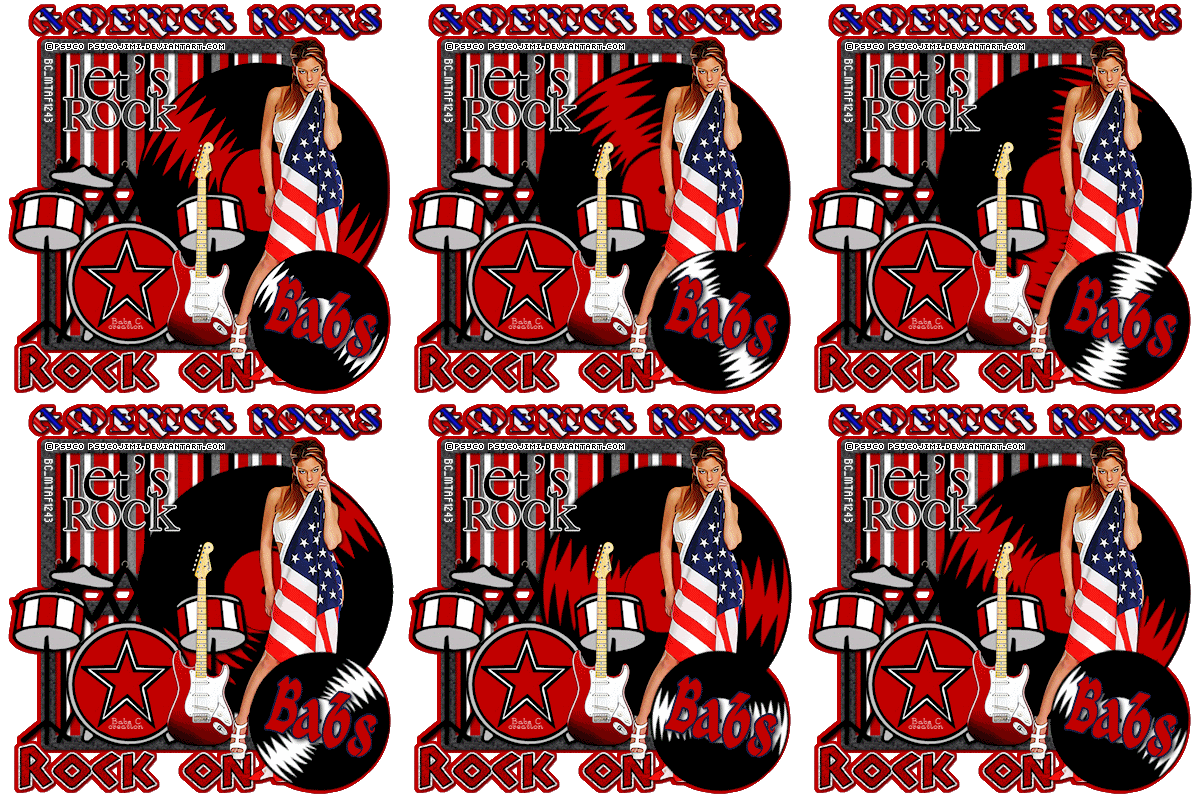
Refer to my image for placement of items.
Left click and right click refers to mouse buttons.
Now you can jump right on in..
1. Open Tubes, minimize for now.
2. Open a new transparent image 700x700 (working image)
Fill with background color if you wish to.
However I will have a steps later to create a no background tag.
3. Select frame element rocke 52 from Kit, Edit/copy
Edit/paste as new layer into working image
No re-size
Move frame to the left but not to close to edge
4. Still on frame Effects/3D/drop shadow (settings below)

5. Select magic wand (settings below)
Click inside both frame windows
Selections/modify/expand 12
Keep selected

6. Layers palette/right click raster 1/add new raster layer
Select paper 05 from kit. Edit/copy
Edit/paste into selection on layer you added
Selections/select none
7. Layers palette click eye close raster 1 (bottom layer)
Right click any open layer/merge/merge visible
8. Select record element rocke 61 from kit, edit/copy
Edit/paste as new layer into working image above merged frame
No re-size
Apply same drop shadow
Move to the right some again not to close to edge
Layers palette/right click rename record 1
9. Select drums element rocke 59 from kit, edit/copy
Edit/paste as new layer into working image
10. Select word art rocke 04 from kit, edit/copy
Edit/paste as new layer into working image
Re-size 80%
Apply same drop shadow
Move to top left corner inside frame area
11. Select word art rocke 08 from kit, edit/copy
Edit/paste as new layer into working image
No re-size
Apply same drop shadow
Move to bottom left corner below frame area
12. Select Psyco Jimi’s strat guitar image, Edit/copy
Edit/paste as new layer into working image
Re-size 60%
Apply same drop shadow
Place on right side of drums
13. Select Psyco Jimi’s happy 4th image, Edit/copy
Edit/paste as new layer into working image
Re-size 60%
Apply same drop shadow
Place on right side of drums
14. Select a color you want to use for text I used a gradient
Angle 45 and repeats of 20
15. Select text tool (settings below steps) font of your choice I used FTU Kingthings Xander
Type out AMERICA ROCKS
Use nodes to size it to fit at top or image
Layers palette/right click text/convert to raster layer

16. Optional you can put an out line around text by doing following
under selections tab do all of the following..
A. select all,
B. select float.
C. Select defloat.
D modify expand 2
Keep selected.
Layers palette/add new raster layer below text layer
Flood fill selection with solid color I used dark blue
Selections/select none
17. If you want to add your name repeat steps 15 and 16.
18. Layers palette click eye close record 1 layer, merged frame layer and raster one layer if you opened it back up
19. Add your copyrights and water marks at this time.
20. Layers palette/right click any open layer/merge/merge visible
You should have 4 layers now
21. Select record element 60 from kit. Edit/copy
Edit/paste as new layer into working image as top layer
Re-size 55%
Apply same drop shadow
Move to bottom right side of image
Layers palette/right click rename record 2
22. Now re-size all layers/smart size to 400x400
23. Optional.. If you wish a clear background Go to Edit/copy/ copy merged
Now paste that just above your bottom raster 1 layer
Line it up correctly by using mover tool if it did not line up
under selections tab do all of the following..
A. select all,
B. select float.
C. Select defloat.
D modify expand 4
Keep selected.
24. Select background layer choose a color using dropper from image
Flood fill the selection
Selections/select none
Delete the merged layer above background layer you added.
ANIMATION
Open your animation shop and minimize for now
1. Select Record 1 layer
Layers palette/right click/duplicate this layer 7 times
You should have 8 record Layers in all..
Close off all of them by clicking eyes in layer palettes
Now Open copy of record 1 (not original record bottom one)
Image/free rotate 25.00 right close this layer
Open copy 2 of record 1 free rotate 50.00 right (click eye close layer)
Open copy 3 of record 1 free rotate 75.00 right (click eye close layer)
Open copy 4 of record 1 free rotate 100.00 right (click eye close layer)
Open copy 5 of record 1 free rotate 125.00 right (click eye close layer)
Open copy 6 of record 1 free rotate 150.00 right (click eye close layer)
Open copy 7 of record 1 free rotate 175.00 right (click eye close layer)
2. Repeat the above exactly for record 2.
3. Now in Psp starting with the bottom original record 1 and record 2 layers open them up
Edit/copy/copy merged
4. Take it to animation shop right click anywhere paste as new animation
5. Back In PSP Close original record 1 and 2 by clicking eye in layers palette
Open copy of record 1 and copy of record 2 Edit/copy/copy merged
Take it to animation shop paste after current frame
6. Repeat step 5 until you have gotten all 8 records put into animation shop
Make sure you always paste after last frame you do not want them out of order
Tip make sure the lines are all pointing the same way to ensure
you have the correct layers open for both records.
8. I did not change display times..
Save your animation
Please if you use it to make a stat apply below credit in your footer
Tutorial by: ©Sassy n Simple
HERE or HERE
You can copy and paste the above but if does not work links below
http://www.sassynsimple.com/
And to here http://groups.yahoo.com/group/sassynsimple/
I would Like to Thank the Babs_SassynSimple_TagsnTuts
Testers for testing my tutorial for me.
