



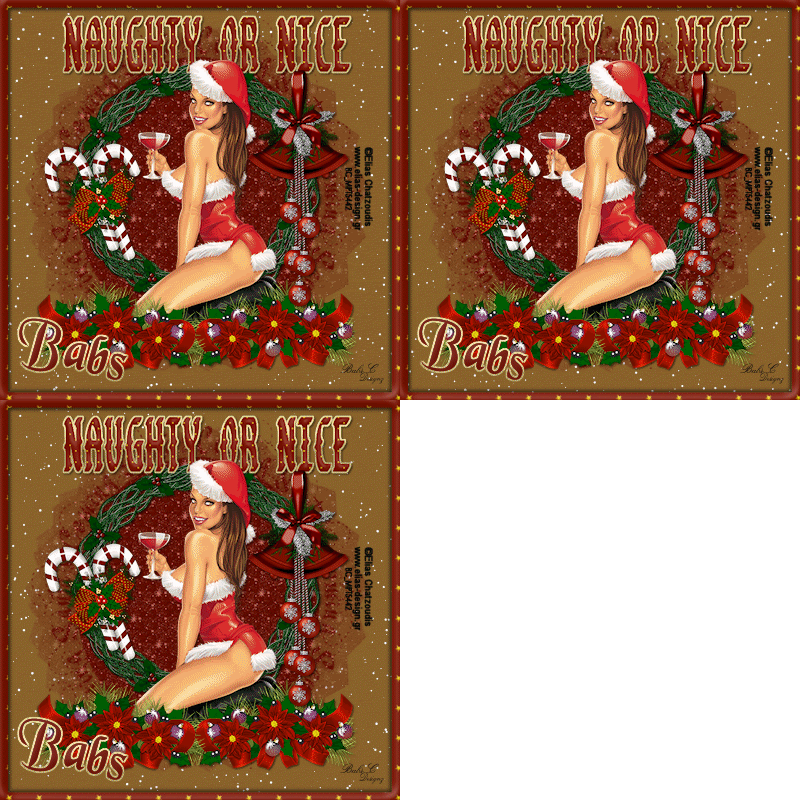
DATE WRITTEN: Nov 17, 2009
©Sassy n Simple
THINGS NEEDED
PAINT SHOP OR COREL PROGRAM
JASC ANIMATION SHOP
TUBE
MASK
FONT
PLUGINS: Eye Candy 4 Bevel Boss, Vanderlee snowflakes
SCRAP KIT TAGGER SIZE
If you choose a different kit re-sizing may change
CREDITS
TUBE: Elias Chatzoudis I have license you must buy it at MSP
KIT: Fantasy Moments FTU TAGGER Elegant Christmas HERE
MASK: GabeeChristmas7-vi HERE
FONT: Of your choice. I used Gesture and Black Chancery
READ BELOW BEFORE STARTING
Settings may differ slightly depending on your version.
Close original image after you copy unless I state other wise.
Sharpen all re-sized items 1 time
RE-SIZE only one layer unless other wise stated.
Refer to my image for placement of items.
Left click and right click refers to mouse buttons.
Now you can jump right on in..
1. Select your Tube and GabeeChristmas7-vi mask Minimize for now.
2. Open a new Transparent Image 700x700 Select #89632d color in your foreground color
flood fill your image
3. Right click in your layers palette/add a new raster layer.
Selections/select all.
Select paper 20 from the kit. Edit/copy,
Edit/paste into Selection.
Selections/Select none
4. Layers New Mask Layer/from Image Select the GabeeChristmas7-vi mask in the window.
source luminance/checked Invert mask data/checked.
5. In your layers palette do the following Right click black/white mask layer Delete/click yes.
When the next pop up window comes up select Yes
Right click mask layer Merge/merge group.
Re-size the Mask 90%
6. Select wreath Element 9 from the kit Edit/copy,
Edit/paste as new layer into your image.
Re-size it 75%.
Effects/3D/drop shadow
Vertical and horizontal 2
Opacity 70
Blur 5.00
color black
Shadow on new layer not checked
Center in your Mask.
7. Select your Tube, Edit/copy,
Edit/paste as new layer into your image.
Re-size as needed I re-sized at 80%.
Apply Same drop shadow.
Center in your wreath.
8. Select Floral Element 52 from the kit Edit/copy,
Edit/paste as new layer into your image.
Re-size it 50%.
Apply Same drop shadow.
Move it to the right bottom of image.
layers palette/right click/Duplicate 1 time
Image/mirror the duplicate.
Space so that they meet.
9. Select Bells Element 48 from the kit Edit/copy,
Edit/paste as new layer into your image.
Re-size them 70%.
Apply same drop shadow.
Place on the right side of your wreath.
10. Select Candy Cane Element 120 from the kit, Edit/copy,
Edit/paste as new layer into your image.
Re-size them 40%.
Apply same drop Shadow.
Place on the left side of wreath.
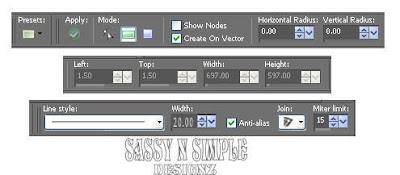
11. Select your rectangle tool (settings below) Select Paper 30 from the kit, minimize.
Select it in your Foreground under your patterns tab.
Angel 0 and scale set to 30
layers palette/click the eye close background
Draw out a rectangle Starting in left Top corner down to right Bottom corner (entire image).
Objects/Align/center in canvas.
Right click on the layer/convert to raster.
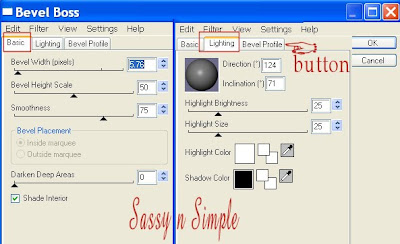
12. Still on the rectangle layer Effects/Eye Candy 4 Bevel Boss Settings below.
Apply your Drop Shadow.
Now go back and Apply Drop shadow again but change Vertical and Horizontal to -2
13. Select The Same paper again In your Foreground/background Color
Set angle to 0 and scale to 20 in both.
Click on your Frame Wreath layer you want your text under your tube layer.
14. Select your Text tool (settings Below) Font of your choice I used Gesture
Type out Naughty or Nice
Size with your nodes.
Right click the layers in layers palette convert to raster layer.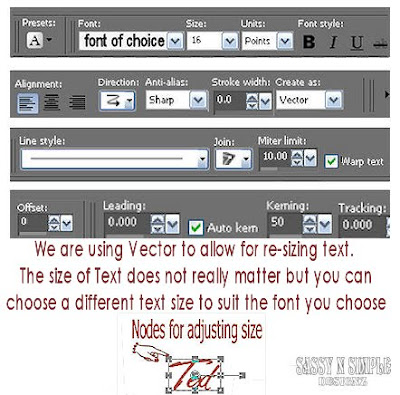
15. Effects/Plugins/Eye Candy 4 Bevel boss Same Settings used for step 12. above.
16. Still on text layer Toolbar under selections tab do all of the following..
A. select all,
B. select float.
C. Select defloat. D modify expand 2 (keep selected)
17. Add a New raster layer under your Text.
Select a Gold Pattern or Gradient of your choice in your foreground color.
Flood fill the selection.
Selections Select None.
Apply Drop shadow.
Make sure to change Vertical and Horizontal back to 2.
18. Adding your name is optional. But use Steps 13 through 17 to do so if you wish.
19. Add your Copyrights and watemark.
Re-size image all layers/smart size to 400x400 or size of your choice.
Close off your back ground layer.
Right click any layer in the layers Palette merge visible.
ANIMATION
1. Open your Animation Shop, minimize it for now. I will refer to it as A.S.
2, In Paintshop Duplicate your background layer 2 times.
3, Starting with Bottom Layer (raster 1) Effects/Plugins/Vanderlee Snow. Apply the settings below.
Do not close this layer
te and close it.
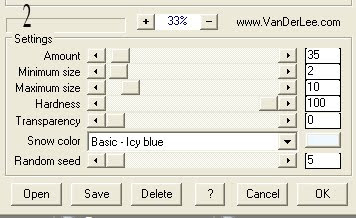 4.
Select the middle Background Layer (copy of raster 1). Apply Vanderlee
Settings Below.
4.
Select the middle Background Layer (copy of raster 1). Apply Vanderlee
Settings Below.
Click on the eye on this layer in layers palette and close it.
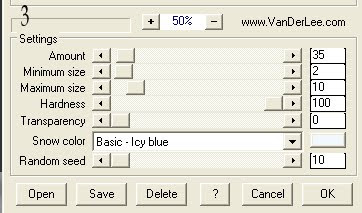
5. Select the Top background layer (Copy 2 or raster 1). Apply the Vanderlee Snow settings below.
Click on the eye on this layer in layers palette and close it.
6. Now only your Merged layer and Bottom Background should be open. Edit/Copy Merged,
Take it to A.S, right click in workspace paste as new animation.
7. Back Paintshop Close off the Bottom Background Layer, Open The middle Background Layer.
Edit/copy merged. Take it to A.S. Right click the first frame Paste/paste after current frame.
8. Back in Paintshop. Close of the middle background Layer. Open the top background Layer.
Edit/copy merge. I A.S. right click frame/paste after current frame.
9. I did not change my display time. Save your animation. Optimization Settings HERE
©Sassy n Simple
THINGS NEEDED
PAINT SHOP OR COREL PROGRAM
JASC ANIMATION SHOP
TUBE
MASK
FONT
PLUGINS: Eye Candy 4 Bevel Boss, Vanderlee snowflakes
SCRAP KIT TAGGER SIZE
If you choose a different kit re-sizing may change
CREDITS
TUBE: Elias Chatzoudis I have license you must buy it at MSP
KIT: Fantasy Moments FTU TAGGER Elegant Christmas HERE
MASK: GabeeChristmas7-vi HERE
FONT: Of your choice. I used Gesture and Black Chancery
READ BELOW BEFORE STARTING
Settings may differ slightly depending on your version.
Close original image after you copy unless I state other wise.
Sharpen all re-sized items 1 time
RE-SIZE only one layer unless other wise stated.
Refer to my image for placement of items.
Left click and right click refers to mouse buttons.
Now you can jump right on in..
1. Select your Tube and GabeeChristmas7-vi mask Minimize for now.
2. Open a new Transparent Image 700x700 Select #89632d color in your foreground color
flood fill your image
3. Right click in your layers palette/add a new raster layer.
Selections/select all.
Select paper 20 from the kit. Edit/copy,
Edit/paste into Selection.
Selections/Select none
4. Layers New Mask Layer/from Image Select the GabeeChristmas7-vi mask in the window.
source luminance/checked Invert mask data/checked.
5. In your layers palette do the following Right click black/white mask layer Delete/click yes.
When the next pop up window comes up select Yes
Right click mask layer Merge/merge group.
Re-size the Mask 90%
6. Select wreath Element 9 from the kit Edit/copy,
Edit/paste as new layer into your image.
Re-size it 75%.
Effects/3D/drop shadow
Vertical and horizontal 2
Opacity 70
Blur 5.00
color black
Shadow on new layer not checked
Center in your Mask.
7. Select your Tube, Edit/copy,
Edit/paste as new layer into your image.
Re-size as needed I re-sized at 80%.
Apply Same drop shadow.
Center in your wreath.
8. Select Floral Element 52 from the kit Edit/copy,
Edit/paste as new layer into your image.
Re-size it 50%.
Apply Same drop shadow.
Move it to the right bottom of image.
layers palette/right click/Duplicate 1 time
Image/mirror the duplicate.
Space so that they meet.
9. Select Bells Element 48 from the kit Edit/copy,
Edit/paste as new layer into your image.
Re-size them 70%.
Apply same drop shadow.
Place on the right side of your wreath.
10. Select Candy Cane Element 120 from the kit, Edit/copy,
Edit/paste as new layer into your image.
Re-size them 40%.
Apply same drop Shadow.
Place on the left side of wreath.
11. Select your rectangle tool (settings below) Select Paper 30 from the kit, minimize.
Select it in your Foreground under your patterns tab.
Angel 0 and scale set to 30
layers palette/click the eye close background
Draw out a rectangle Starting in left Top corner down to right Bottom corner (entire image).
Objects/Align/center in canvas.
Right click on the layer/convert to raster.

12. Still on the rectangle layer Effects/Eye Candy 4 Bevel Boss Settings below.
Apply your Drop Shadow.
Now go back and Apply Drop shadow again but change Vertical and Horizontal to -2

13. Select The Same paper again In your Foreground/background Color
Set angle to 0 and scale to 20 in both.
Click on your Frame Wreath layer you want your text under your tube layer.
14. Select your Text tool (settings Below) Font of your choice I used Gesture
Type out Naughty or Nice
Size with your nodes.
Right click the layers in layers palette convert to raster layer.

15. Effects/Plugins/Eye Candy 4 Bevel boss Same Settings used for step 12. above.
16. Still on text layer Toolbar under selections tab do all of the following..
A. select all,
B. select float.
C. Select defloat. D modify expand 2 (keep selected)
17. Add a New raster layer under your Text.
Select a Gold Pattern or Gradient of your choice in your foreground color.
Flood fill the selection.
Selections Select None.
Apply Drop shadow.
Make sure to change Vertical and Horizontal back to 2.
18. Adding your name is optional. But use Steps 13 through 17 to do so if you wish.
19. Add your Copyrights and watemark.
Re-size image all layers/smart size to 400x400 or size of your choice.
Close off your back ground layer.
Right click any layer in the layers Palette merge visible.
ANIMATION
1. Open your Animation Shop, minimize it for now. I will refer to it as A.S.
2, In Paintshop Duplicate your background layer 2 times.
3, Starting with Bottom Layer (raster 1) Effects/Plugins/Vanderlee Snow. Apply the settings below.
Do not close this layer
te and close it.
 4.
Select the middle Background Layer (copy of raster 1). Apply Vanderlee
Settings Below.
4.
Select the middle Background Layer (copy of raster 1). Apply Vanderlee
Settings Below. Click on the eye on this layer in layers palette and close it.

5. Select the Top background layer (Copy 2 or raster 1). Apply the Vanderlee Snow settings below.
Click on the eye on this layer in layers palette and close it.
6. Now only your Merged layer and Bottom Background should be open. Edit/Copy Merged,
Take it to A.S, right click in workspace paste as new animation.
7. Back Paintshop Close off the Bottom Background Layer, Open The middle Background Layer.
Edit/copy merged. Take it to A.S. Right click the first frame Paste/paste after current frame.
8. Back in Paintshop. Close of the middle background Layer. Open the top background Layer.
Edit/copy merge. I A.S. right click frame/paste after current frame.
9. I did not change my display time. Save your animation. Optimization Settings HERE
I would Like to Thank the SassynSimple_TutsnTags
Testers for testing my tutorial for me.
I hope you enjoyed this Tutorial.
Please if you use it to make a stat apply below credit in your footer
Tutorial by: ©Sassy n Simple
HERE or HERE
You can copy and paste the above but if does not work links below
http://www.sassynsimple.com/
And to here http://groups.yahoo.com/group/sassynsimple/
Testers for testing my tutorial for me.
I hope you enjoyed this Tutorial.
Please if you use it to make a stat apply below credit in your footer
Tutorial by: ©Sassy n Simple
HERE or HERE
You can copy and paste the above but if does not work links below
http://www.sassynsimple.com/
And to here http://groups.yahoo.com/group/sassynsimple/
